Sign in
Use the details your organisation gave you. To join an event, use its code instead.
The first screen says “Sign in with the credentials issued for this device.”
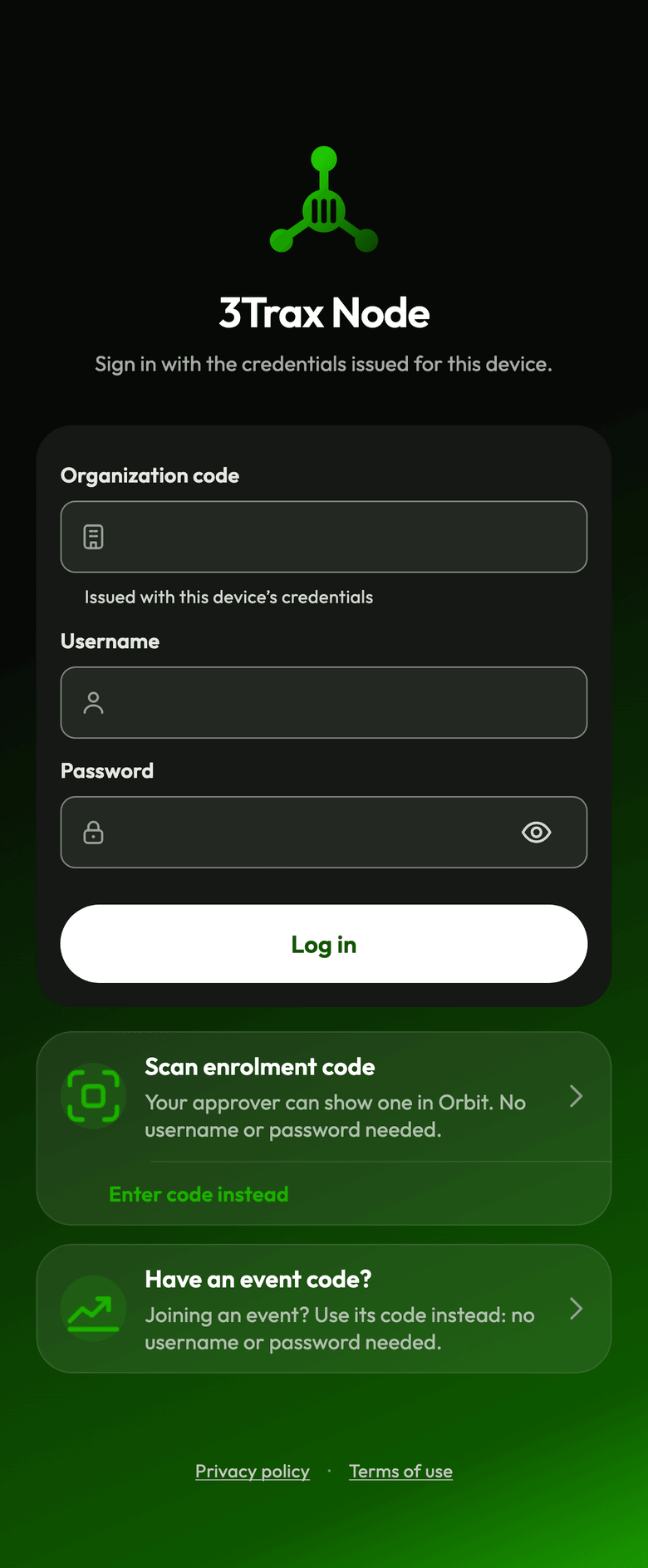
With your organisation's details
- Enter your Organization code.
- Enter your Username and Password.
- Tap Log in.
With an event code
Tap Have an event code? and follow Join an event. If you typed an event code in the organisation box by accident, the app offers Join the event.
If you can't sign in
| You see | What to do |
|---|---|
| “Invalid username or password.” | Check them, or ask whoever issued them. |
| “Too many attempts.” | Wait a few minutes and try again. If it says to ask your admin, they need to unlock your account. |
| “Couldn't reach the server. Check your connection and try again.” | Move to where you have signal. |
| “Update the app to sign in.” | Update 3Trax Node from your store. |
| “A parent or guardian must give consent before this device can sign in.” | Ask your organisation to resend the consent request. |
| “Your session ended. Please sign in again.” | Sign in again. |
| “You were signed out from the Orbit console. Sign in again to continue.” | An admin signed this phone out. Sign in again, or ask them why. |