Dispatches
Jobs sent to you, from acknowledging them to completing them.
Dispatches is where your jobs appear. If you don't have that tab, your organisation doesn't use it. Current jobs also show as Live jobs on the map.
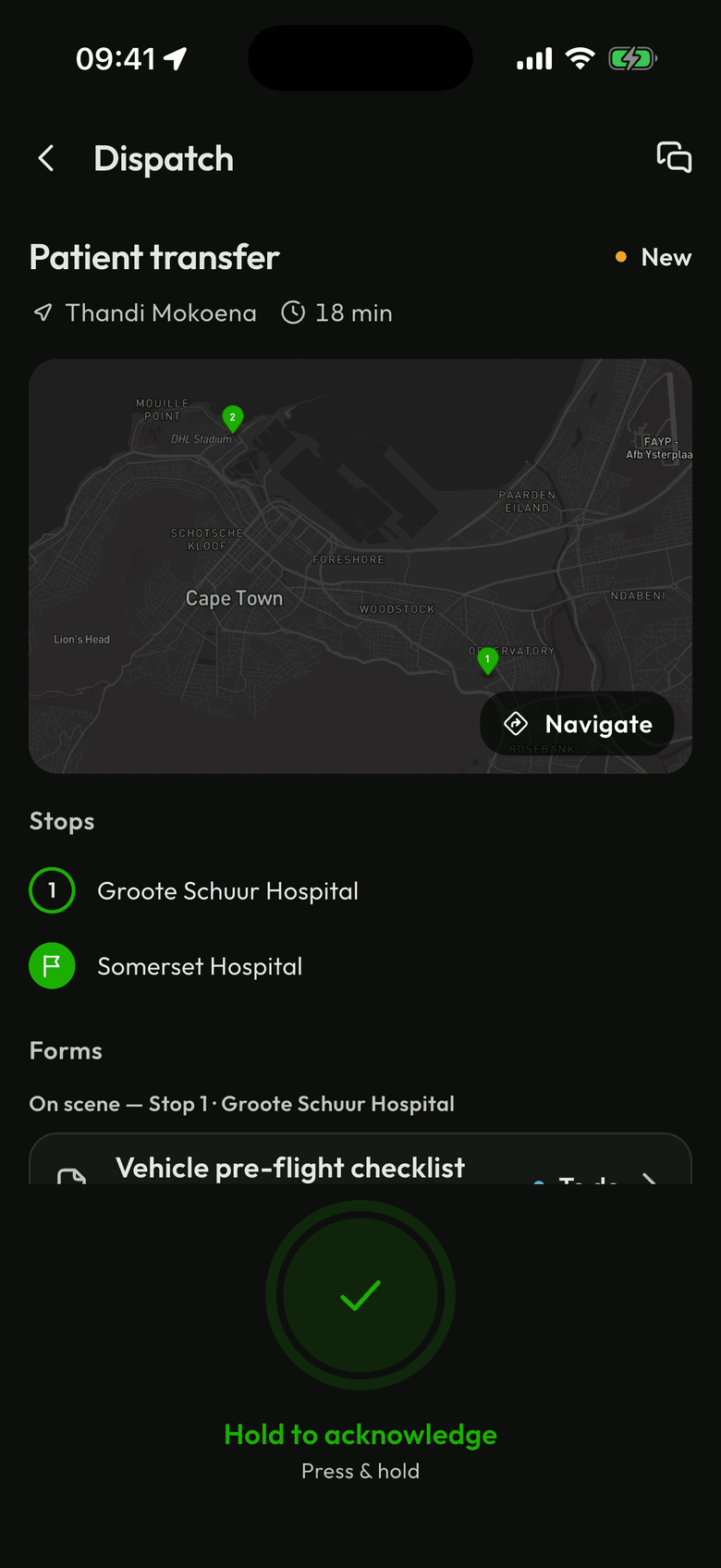
Work through a job
Most actions need a press and hold, so you can't trigger them by accident. You'll only see the steps your job uses.
- Open the job from the list or from Live jobs.
- Hold to acknowledge.
- If there's a check before you leave, Hold to confirm pre-flight complete.
- Tap Navigate to open directions in your maps app.
- At a stop, Hold to confirm you're on scene.
- If there's a final check, Hold to confirm post-flight complete.
- Hold to complete, then confirm with Complete. This can't be undone.
If the job changes
If a dispatcher updates the route, the job shows MODIFIED. Review the stops and Hold to acknowledge changes.
If you can't finish
If your operator allows it, you'll see Cancel dispatch. Tapping it ends the job and tells the dispatcher. Tap Keep going if you change your mind.
With no signal
Steps work offline. You'll see “Will sync when there's signal”, and they send when you're back in range.
Status words
New, Acknowledged, Modified, Completed and Cancelled.