Live map
See where your nodes are, follow one, and share one for a short time.
Live Map is where Orbit opens. The panel on the left lists your nodes, and each one has a pin on the map.
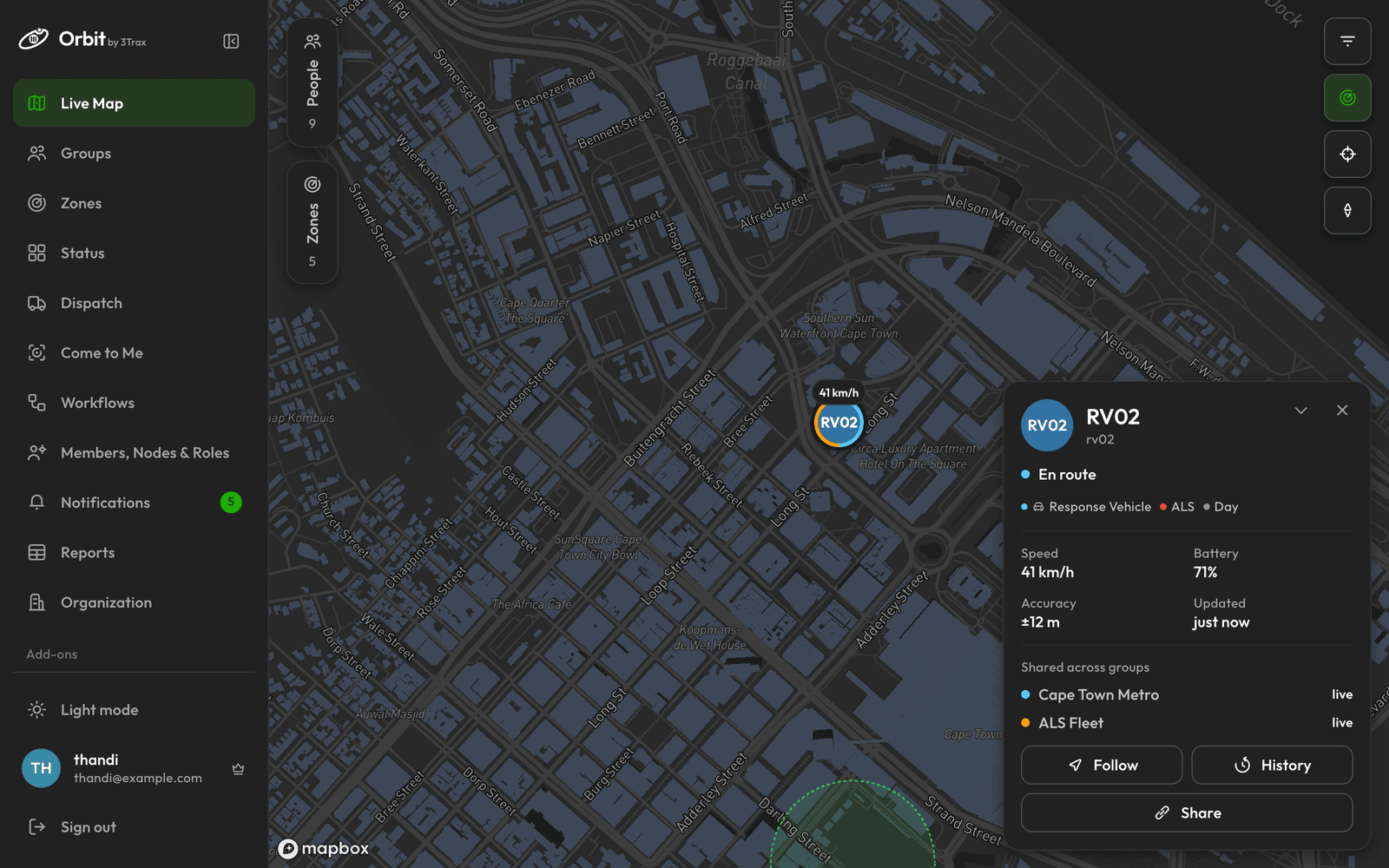
Find a node
- Use the group picker at the top of the panel to choose All Nodes, Unassigned or one group.
- Type in Search nodes… to narrow the list.
- Click a node. Its card opens and the map moves to it.
To choose what each row shows, click the view options icon and use Show details: Tags, Speed, Last seen, Battery and Groups.
What's on a node's card
The card shows Speed, Battery, Accuracy and Updated, and has these buttons:
- Follow keeps the map on this node. It reads Following while it is on.
- History opens where the node has been. See History.
- Message starts a chat, if your organisation has Messages.
- Share creates a guest link. Owners and admins only.
What the notes on a card mean
| You see | It means |
|---|---|
| “No location” | The node hasn't reported a position yet. |
| “Tracking off” | The person has paused location sharing. See Pausing location. |
| “Lite mode” | The phone sends about one position a minute while moving, and watching it doesn't speed it up. |
| “Saving battery” | The phone is low, so updates come less often than usual. |
Map buttons
The icons on the map let you Filter by tag, Hide zones or Show zones, Fit everyone in view, and Face north.
Share a node for an hour
- Open the node's card and click Share. This creates a link that lasts one hour.
- Send the link to the person who needs it. They see one node, with no sign-in.
To choose a different length, or to end a link early, see Guest links.